
The Progress screen
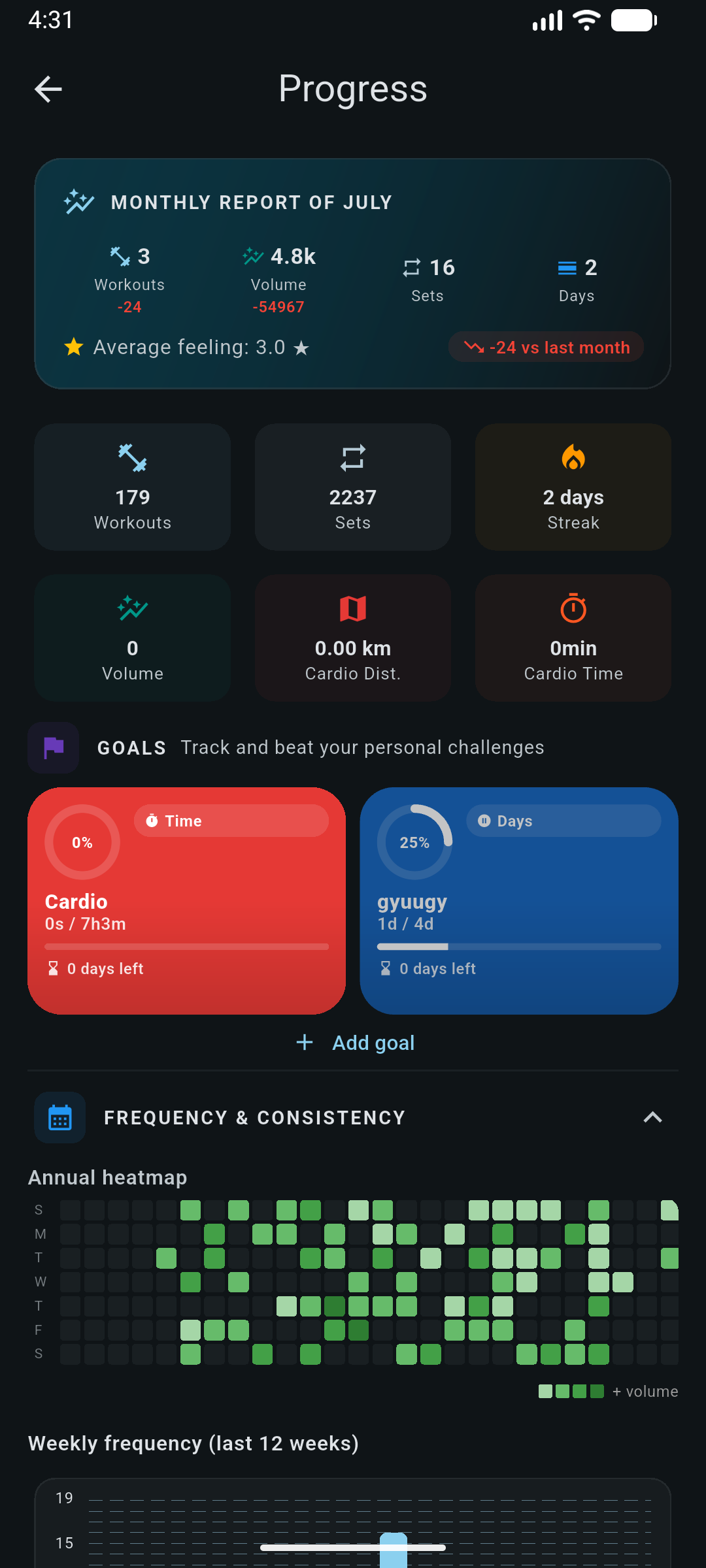
Reachable from Tools → Progress on the Workout tab. Above the tabs sit two fixed blocks: a monthly report card, and your active goals. Below them, four tabs load their data the first time you open them and then keep it.
| Tab | What it answers |
|---|---|
| Frequency | Am I actually showing up? Yearly heatmap keyed by daily volume, plus which weekdays you train |
| Training | Is the work going up? Volume by category and by exercise, trend over weeks, months or years, session duration and density |
| Wellness | How does it feel, and what is my body doing? Session feeling trend, feeling against volume, body weight against volume, measurement summary and composition trend |
| Exercises | Which lifts are moving? Per-exercise 1RM, top weight and volume charts with record cards |
The formulas
Nothing here is a black box. These are the definitions the app uses everywhere, including in the numbers the AI Coach reads.
| Metric | Definition | Notes |
|---|---|---|
| Volume | Σ weight × reps |
Warm-up sets always excluded |
| Estimated 1RM | weight × (1 + reps ÷ 30) |
Epley, applied to the heaviest set of that session; the best across sessions becomes your 1RM record |
| Density | volume ÷ session duration |
Reported in weight per minute over your last sessions |
| Personal record | MAX(weight) per exercise |
Stored with the reps and date of that exact set |
| Streak | Consecutive days with a finished workout | Counted back from your most recent training day, so it does not reset the moment today is empty |
| RPE trend | AVG(rpe) per workout |
Carried with a count of how many sets had an RPE at all |
Overview totals count only workouts with an end time, and only sets you marked complete. A session you abandoned halfway does not inflate your history, but it is still there if you open it.
Frequency
- Yearly heatmap: one cell per date for the current year, shaded by that day's volume.
- Weekday distribution: which days of the week you actually train, taken from the workout dates in range.
Training
Anaerobic analytics are scoped by the exercise category's energy system, so cardio work never distorts your strength volume.
- Volume by category, weekly (Monday-anchored, 12 weeks by default) and monthly (6 months).
- Top exercises by volume, and an energy-system split between anaerobic and aerobic work.
- A sets toggle: the same charts can count sets instead of weight × reps, which is the more useful lens when you train close to bodyweight.
- Trend buckets: the last 12 Monday-anchored weeks, the last 12 months, or the last 5 calendar years.
- Duration and density: how long sessions run, and how much work per minute they contain.
Wellness
This tab is where subjective and objective data meet. The session feeling you set when finishing a workout is plotted as a trend and against volume, so a run of hard weeks becomes visible. Body weight is charted against same-day volume over six months, and measurement summaries and estimated composition come from the body tracker.
Exercises
A list of your non-aerobic exercises; tapping one opens a sheet with charts for estimated 1RM, top weight and volume, plus record cards. Every point traces back to the session it came from.
Cardio analytics
Cardio has its own series, kept separate from strength so neither distorts the other:
- weekly and monthly distance by modality;
- pace trend per exercise;
-
cardio records: longest distance, longest time and best pace
(
MIN(time ÷ distance)).
GPS runs have a richer set of their own metrics; see Running & cycling.
Monthly report
The card above the tabs summarises the current month: workouts, total duration, average feeling, total volume, total sets, how many distinct days you trained, and volume per category, with deltas against the previous month for workouts, volume and sets.
Goals
A goal is a target for a period. They appear on the Progress screen with a completion badge, and each one has a detail screen showing which sessions are feeding it.
Anatomy of a goal
- Scope
- Anaerobic or aerobic: this filters which exercise categories count.
- Metric
- Anaerobic goals can target volume or days. Aerobic goals can target distance, time or days.
- Period
- Weekly runs Monday to Sunday; monthly runs from the 1st to the last day.
- Target
- A number, with an optional colour and an active flag.
How each metric is counted
| Metric | What counts |
|---|---|
| Volume | Weight × reps over non-warm-up sets whose exercise category matches the goal's energy system |
| Days | Distinct dates with a qualifying workout and, for aerobic goals, also dates with a completed run. Two records on the same day count once |
| Distance | Cardio set distance plus GPS run distance |
| Time | Cardio set time plus run moving time, falling back to total run duration |
Progress, history and suggestions
-
Progress is
value ÷ target, clamped between 0 and 1.5, so a big overshoot is visible without breaking the ring. The goal is complete as soon as the value reaches the target. - Days elapsed and days remaining in the period are shown alongside, so "60% with two days left" reads differently from "60% on Tuesday".
- The detail screen keeps the last six periods with a completed or missed marker, and lists the contributing sessions with each one's share.
suggested target = average of last 4 non-empty periods × 1.10
Rounded. Used when the app proposes a target for a new goal: a 10%
step up on what you have actually been doing, not an arbitrary round
number.
Days goals are the most robust when you are trying to build a habit, because they cannot be gamed by a single huge session. Volume goals are the better fit inside a periodization phase, where the planned workload is already decided.