
Install
Android
Download the APK from the latest release and open it. Android will ask you to allow installing an app from your browser or file manager the first time. There is nothing to sign in to afterwards. The app opens straight into the Workout tab with a seeded exercise library ready to use.
From source
The repository builds with a standard Flutter toolchain. Dart 3.12.1 or a compatible newer 3.x release is expected.
git clone https://github.com/RafaelGoulartB/workout-notes
cd workout-notes
flutter pub get
flutter run              # debug build on a connected device
flutter build apk --release
Run flutter doctor first. Missing Android
command-line tools or an unaccepted licence is the most common
reason a first build fails.
Permissions, and what happens without them
The app asks for a permission at the moment a feature needs it, never at startup. Every one of them is optional; refusing a permission disables one feature and nothing else.
| Permission | Needed for | If you refuse |
|---|---|---|
| Precise location | GPS run recording | Runs cannot be recorded; stationary bike sessions still work |
| Notifications | Rest timer, session timer, run and sleep service notices | Recording keeps working; you simply lose the live countdown in the shade |
| Microphone | Sleep monitoring | You can still type nights in by hand |
| Camera | Barcode scanning, food label photos, wake-up missions | Search foods by name or create them manually |
| Exact alarms | Alarms and the sleep alarm firing on time | Alarms may be delayed by system batching |
| Full-screen intent | Showing the alarm screen over the lock screen | The alarm arrives as a normal notification |
Nothing is uploaded anywhere. Three features reach the internet and only when you use them: map tiles while running, food lookups against Open Food Facts, and requests to the AI provider you configured yourself. See Data, backup & privacy.
Set your preferences first
Open Settings from the gear icon on the Workout tab. Four settings are worth deciding before you log anything, because they change how every later value is displayed.
- Unit system
-
kgwith centimetres, orlbswith inches. Defaultkg. - Distance unit
- Kilometres or miles, applied to runs, cardio sets and pace.
- Default rest time
-
Used when an exercise has no rest time of its own. Default
90 s. - Theme, accent colour and language
- Light, dark or follow the system; a selectable accent colour; and English or Brazilian Portuguese.
Two more switches affect the live workout screen: keep the screen on during a session, and auto-start the workout timer, which starts the session stopwatch when you complete your first set and stops it when the last set is done.
Log your first strength session
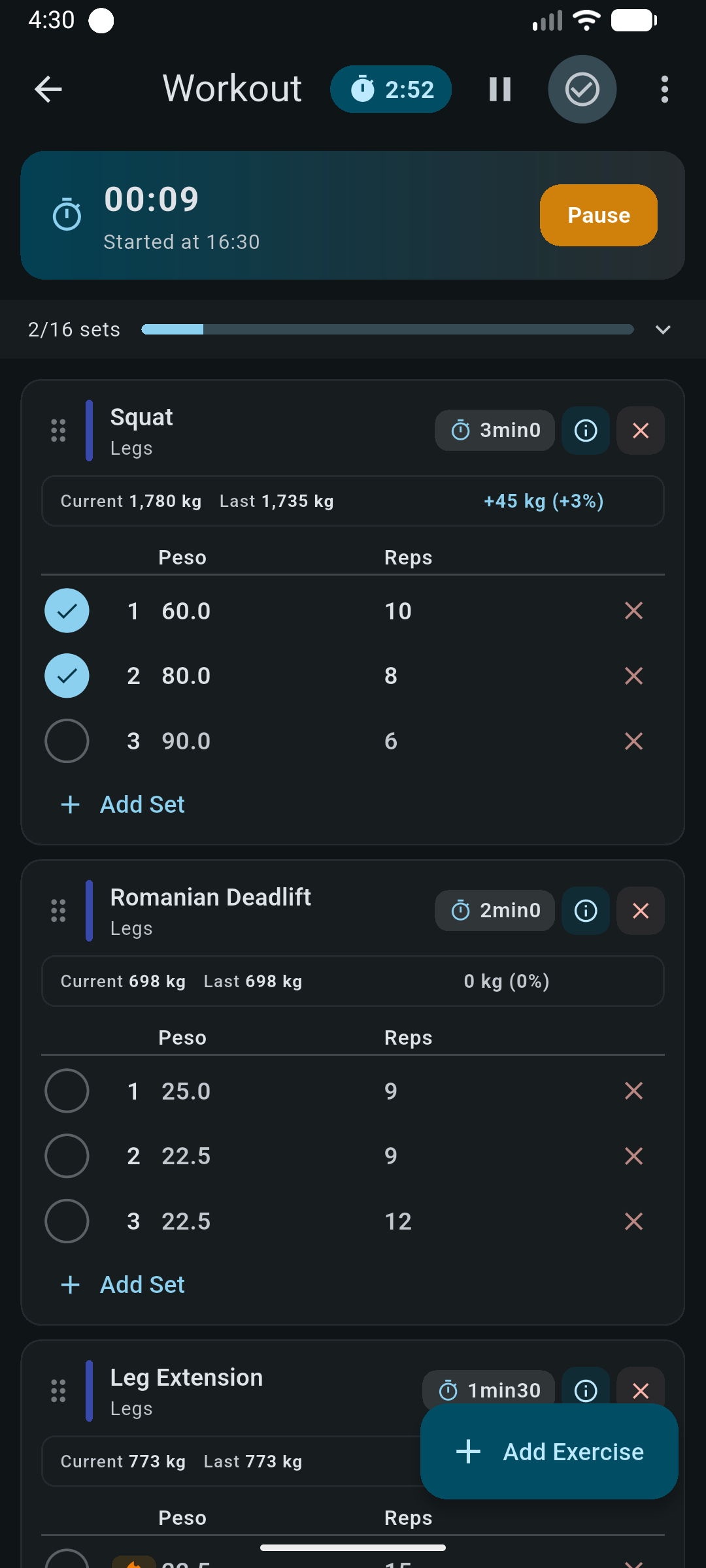
- On the Workout tab, tap New Workout · Start now. An empty session is created immediately, but the clock does not start until you press start or complete a set.
- Tap Add exercise and pick something from the seeded library. The first time you use an exercise it arrives with a single empty set; after that it is pre-filled with the weight and reps from the last workout that contained it.
- Type the weight and reps, then tap the circle to mark the set complete. The rest timer for that exercise starts on its own.
- Tap a set row to open the editor if you want to add RPE (0–10), flag it as a warm-up, or leave a comment. Warm-up sets are excluded from volume and from personal records.
- Tap Add set to repeat; it copies the previous set, so a straight 3×10 is three taps.
- Tap Finish. Rate how the session felt, add a comment if you want, and save. If you beat a previous best, the confirmation tells you how many records fell.
Then set up whatever you actually track
Nothing else is required, and no area depends on another. Add only what you will keep up with.
- Repeat your training week: build a routine with days and predefined sets, then start a session from a routine day in one tap.
- Watch your bodyweight trend: log weight in the body tracker; the latest entry also feeds calorie estimates for workouts and runs.
- Give yourself a weekly target: create a goal for training volume, training days, distance or time.
- Record a run: see Running & cycling for how tracking survives a locked screen.
- Eat to a number: let Nutrition suggest calories and macros from your weight, height, age and activity level.
- Plan a block: split the next weeks into phases with their own targets and a weekly check-in.
Because your journal lives only on your device, take a backup once you have data worth keeping: Settings → Backup writes a JSON file you can save, share or restore later. Details in Data, backup & privacy.